
External Antenna Connection GuideUpdated 8 months ago
Proper external antenna placement is crucial for optimizing signal strength and performance. Follow the steps below to correctly install an external antenna on your NetriFi Netlink device.
This guide explains how to connect your External antennas based on whether your device is online, offline, or experiencing slow internet speeds.
Different devices have different numbers of cellular antenna ports. Follow the section that matches your device.
4G CAT12 Device: Units With 4 Cellular Antenna Ports
Port Layout
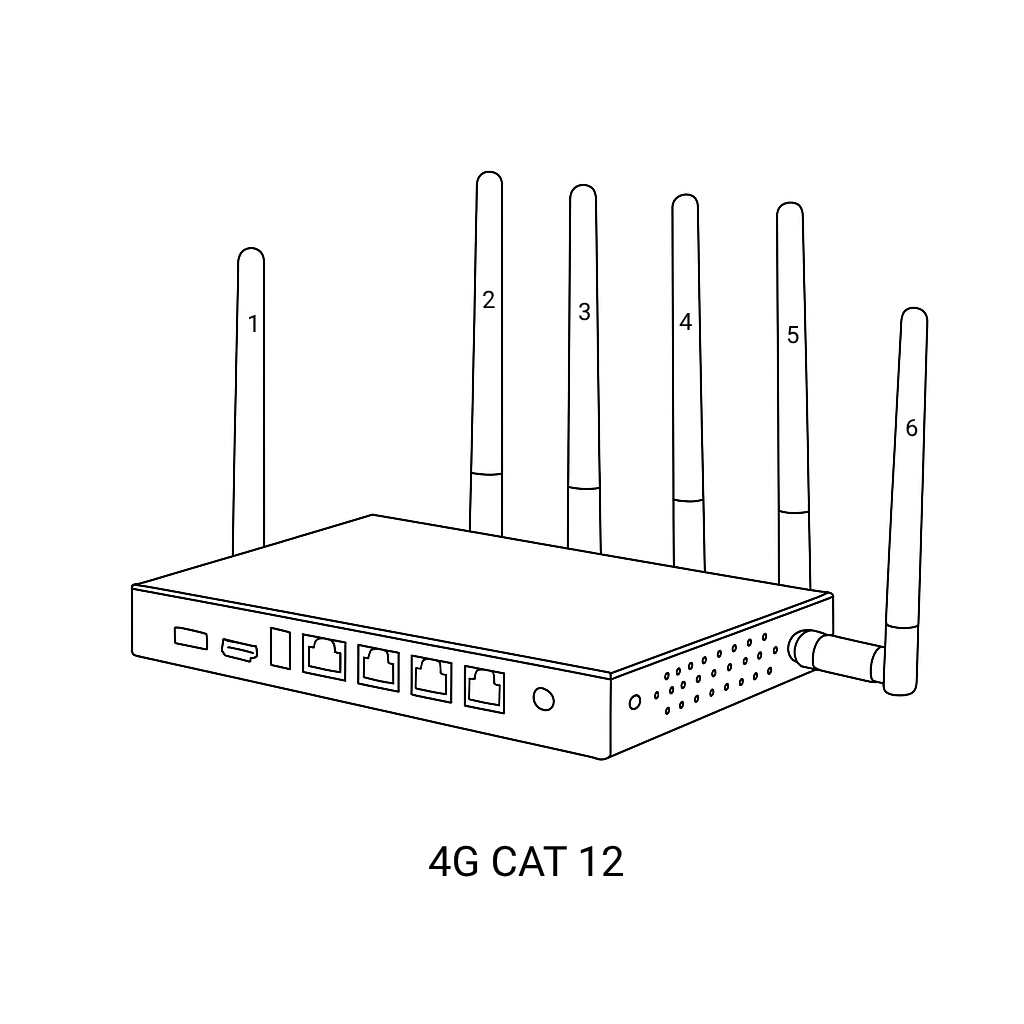 Port 1 – Wi-Fi
Port 2 – Cellular (cloud connection – primary)
Port 3 – Cellular (cloud connection – secondary)
Port 4 – Cellular (internet – primary)
Port 5 – Cellular (internet – secondary)
Port 6 – Wi-Fi
If Your Device Is Online but Internet Is Slow
Goal: Improve internet speed while keeping cloud access stable.
If You Have 4 Antennas
Connect:
Port 4 + Port 5 → Internet performance
Port 2 + Port 3 → Cloud connection
If You Have 2 Antennas (Most Common)
Connect:
Port 4 + Port 5
✔ Best speed improvement
✔ Device usually stays online using internal antennas
If the device later goes offline, follow the section below.
If Your Device Is Offline and Not Reachable by Cloud Management
Goal: Bring the device online first.
If You Have 4 Antennas
Connect:
Port 2 + Port 3 → Cloud connection
Port 4 + Port 5 → Internet
Once the device shows online, you may move one antenna from Port 2 or 3 to Port 5 for better speed.
If You Have 2 Antennas
Connect:
Port 2 → Cloud connection
Port 4 → Internet
After the device comes online:
Move the antenna from Port 2 → Port 5
5G CAT20 Device: Units With 6 Cellular Antenna Ports
Port Layout
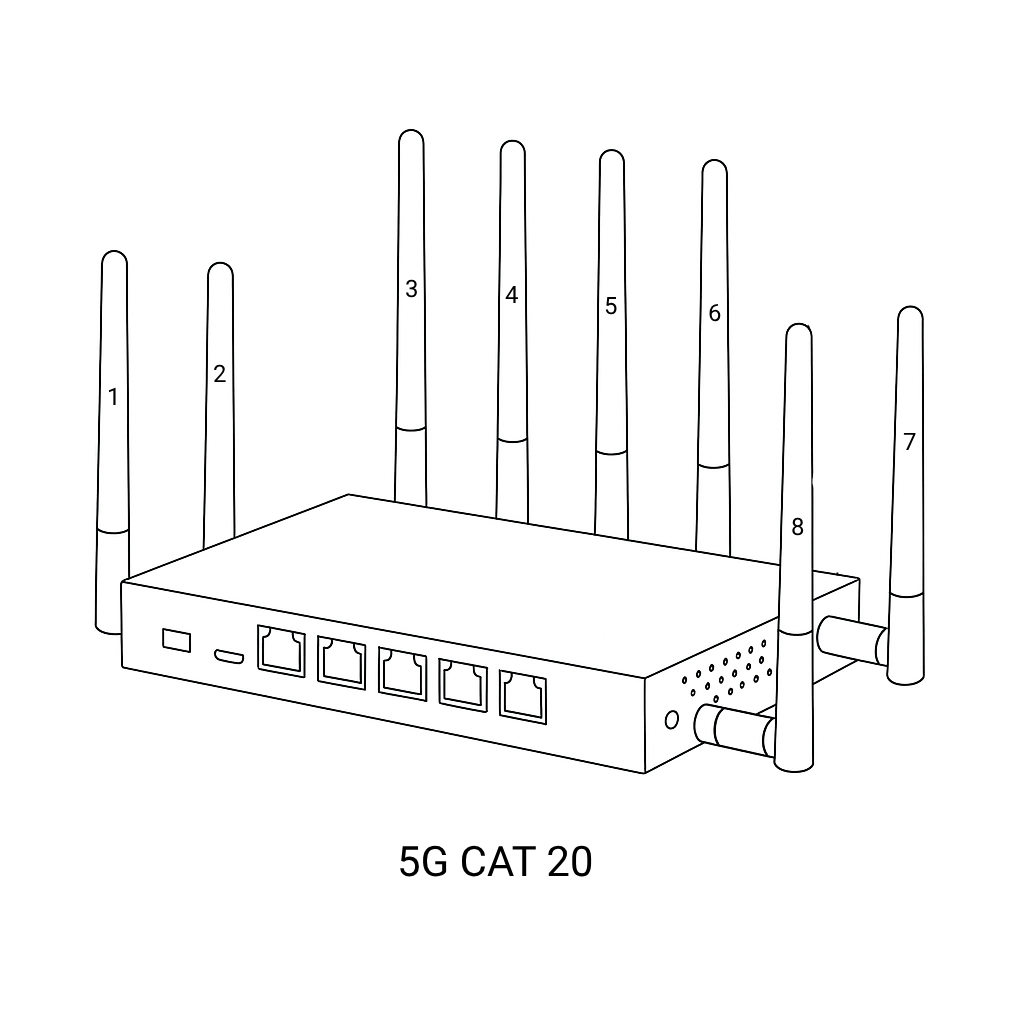
Port 1 – Cellular (cloud connection – primary)
Port 2 – Wi-Fi
Port 3 – Cellular (internet – primary)
Port 4 – Cellular (internet – diversity)
Port 5 – Cellular (internet – additional)
Port 6 – Cellular (internet – additional)
Port 7 – Wi-Fi
Port 8 – Cellular (cloud connection – secondary)
If Your Device Is Online but Internet Is Slow
Goal: Maximize internet performance.
If You Have 4 Antennas
Connect:
Port 3 + Port 4 + Port 5 → Internet
Port 1 → Cloud connection
If You Have 2 Antennas
Connect:
Port 3 + Port 4
✔ Best performance
✔ Cloud connection usually works using internal antennas
If cloud access drops, move one antenna to Port 1.
If Your Device Is Offline and Not Reachable by Cloud Management
Goal: Restore cloud connectivity first.
If You Have 4 Antennas
Connect:
Port 1 + Port 8 → Cloud connection
Port 3 + Port 4 → Internet
Once online, move one antenna from Port 1 or 8 to Port 5 or 6 for better speed.
If You Have 2 Antennas
Connect:
Port 1 → Cloud connection
Port 3 → Internet
After the device comes online:
Move the antenna from Port 1 → Port 4 or Port 5
Quick Reference
| Situation | Priority |
|---|---|
| Device offline | Use cloud connection ports first |
| Device online, slow speeds | Use internet ports |
| Only 2 antennas | Expect to swap one after setup |
| Frequent disconnects | Move one antenna back to cloud port |
Important Notes
Wi-Fi antenna ports do not affect cellular speed.
Plugging antennas into the wrong cellular ports can reduce performance.
Swapping antennas after setup is normal and sometimes required.
If unsure, start with cloud ports, then move toward internet ports.